
Accessing profile settings
Click your profile icon or avatar in the top-right corner of the dashboard, then select Settings.
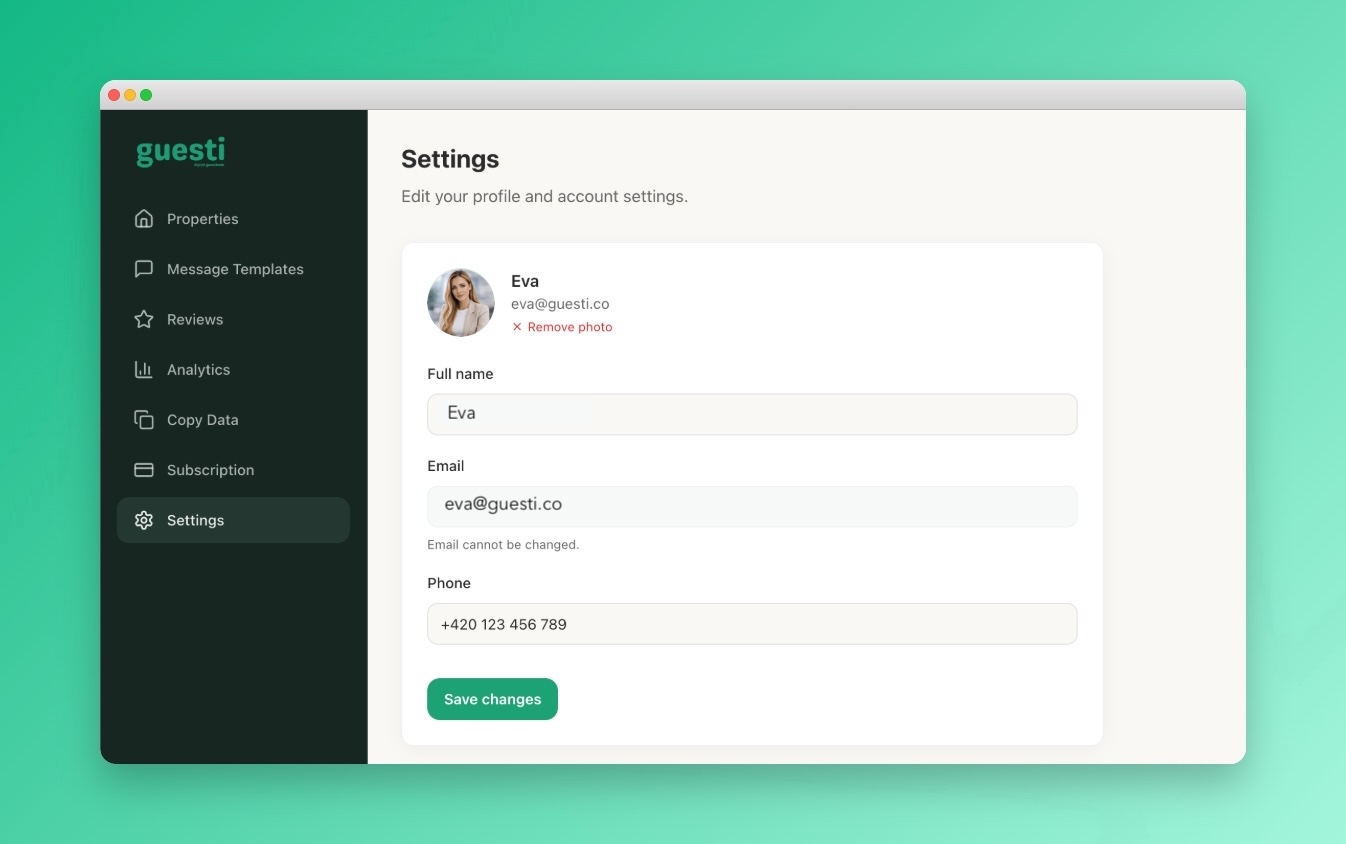 Screenshot: Profile settings page
The profile settings page showing avatar, full name field,
email field, phone field, and a Save changes button
Screenshot: Profile settings page
The profile settings page showing avatar, full name field,
email field, phone field, and a Save changes button
Updating your name
Your name appears in the Welcome section of your guidebooks (as the host name) and in your account emails. To update it, edit the Full Name field and click Save changes.
Email address
Your email address is shown for reference but cannot be changed. It is the address used to log in and receive account notifications. This email is for admin purposes only and is never shown to guests.
Updating your phone number
Add or update a phone number in the Phone field and click Save changes. This number is for admin purposes only and is never shown to guests.
The contact information your guests see is set inside each guidebook individually, not here. Go to your guidebook settings to update the host name, phone, and email shown to guests.
Updating your profile photo
Click the avatar circle at the top of the profile page and choose a photo from your device. Recommended: at least 200×200px, square. Supported: JPG, PNG, WebP, max 5 MB. Your profile photo is used in guidebooks when no per-property host photo is set.
Danger Zone
At the bottom of the Settings page you will find the Danger Zone section. From here you can permanently delete your account.
Deleting your account will permanently remove all your data, including properties, guidebooks, and guest information. This action cannot be undone.