Publishing your portal
Finish building your guidebook
Make sure you've added and filled in all the sections you want. The live preview shows you exactly what guests will see.
Click the "Live" button
The Live button is at the top-right of the guidebook Builder. Clicking it makes your guidebook publicly accessible via its unique URL.
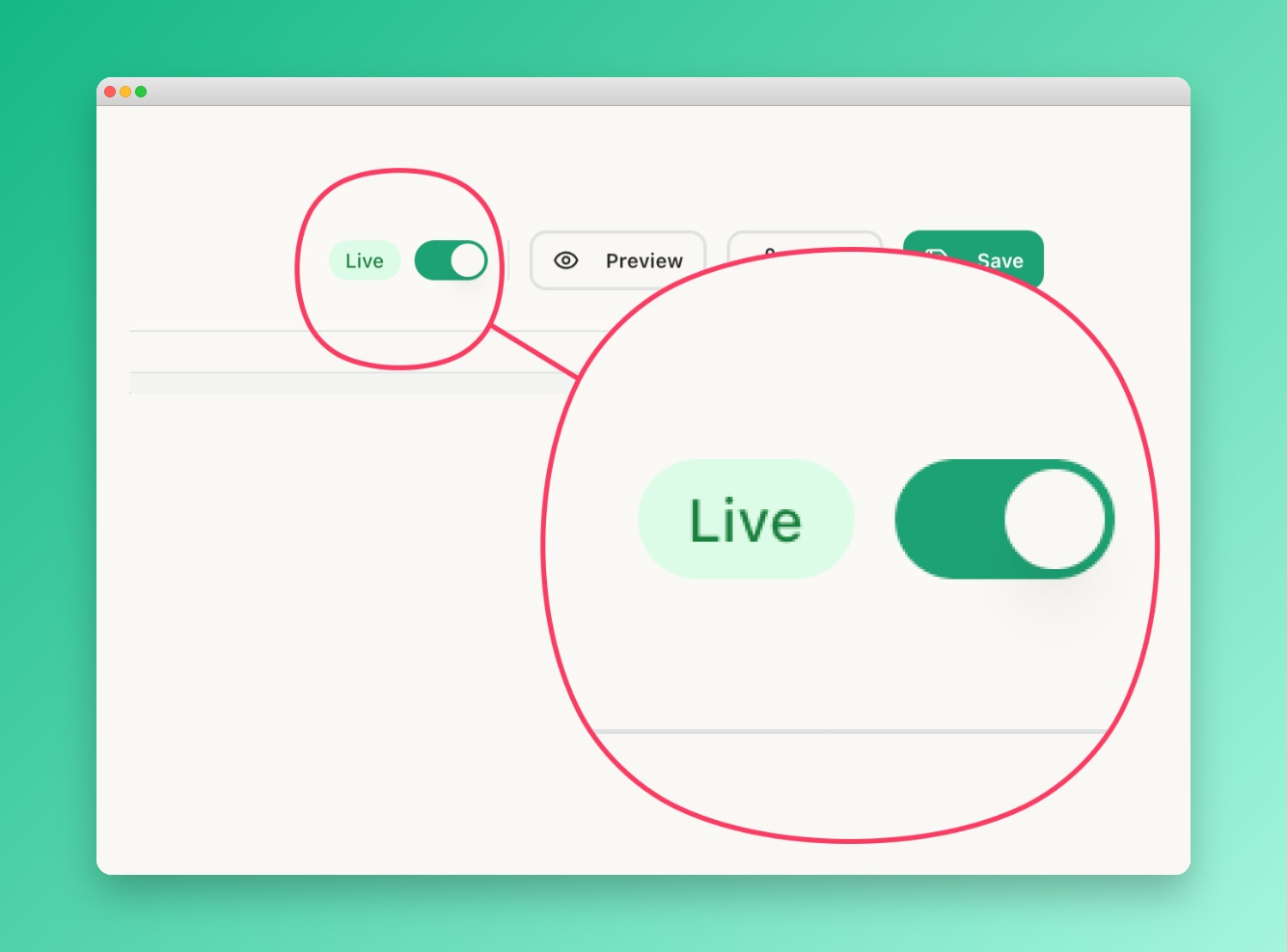 Screenshot: Live button
The guidebook builder top bar with the green 'Live' button
highlighted and a status indicator showing 'Draft'
Screenshot: Live button
The guidebook builder top bar with the green 'Live' button
highlighted and a status indicator showing 'Draft'
Copy your guidebook URL
After publishing, a dialog shows your guidebook URL — something like
guesti.co/p/your-property-name. Click "Copy Link" to copy it to your clipboard.
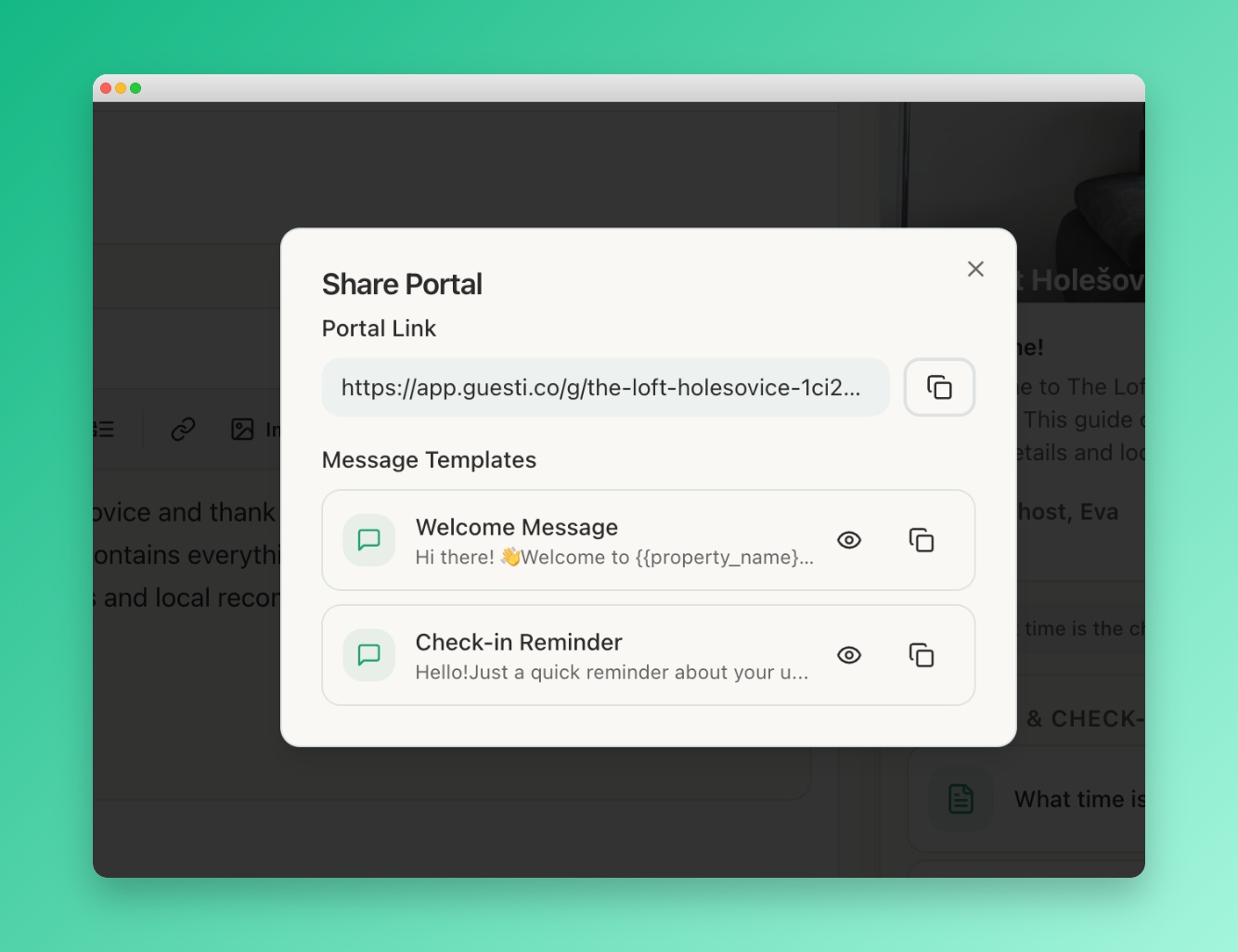 Screenshot: Published guidebook dialog
The publish success dialog showing the guidebook URL, copy link
button, and QR code
Screenshot: Published guidebook dialog
The publish success dialog showing the guidebook URL, copy link
button, and QR code
Sharing with guests
Option 1: Send the link directly
Paste the portal link into your message to guests on Airbnb, Booking.com, WhatsApp, or any messaging platform. Guests can open it on any device — no app required.
Option 2: Use a message template
Set up a message template with the {{property_name}} placeholder. When you copy the template for
a specific booking, the URL is automatically inserted. See Using Placeholders.
Option 3: QR code
Download the QR code from the publish dialog and print it — stick it on the fridge, in the welcome booklet, or anywhere guests will see it. Scanning it opens the portal instantly.
Your guidebook URL stays the same even when you update content. There's no need to republish after every edit — changes to sections are reflected in real time on the published portal.
Unpublishing
To take your guidebook offline, open Property → toggle the Live switch off. The URL will return a "guidebook not found" message until you publish again. All your content is preserved.