
How sections work
Each section covers a specific topic — WiFi credentials, house rules, local restaurant tips, etc. You control which sections appear in your portal and in what order. Sections can be added, edited, reordered, and removed at any time.
Adding a section
Open the Portal Builder for your property
From your dashboard, click to edit the Property and that opens your Portal Builder.
Click "+ Add" in the left panel
A section picker dialog appears showing asking you to choose a Category or Section.
You can think of it as a way to organize your guidebook content.
- Categories: Group related sections together.
- Sections: Individual pieces of content.
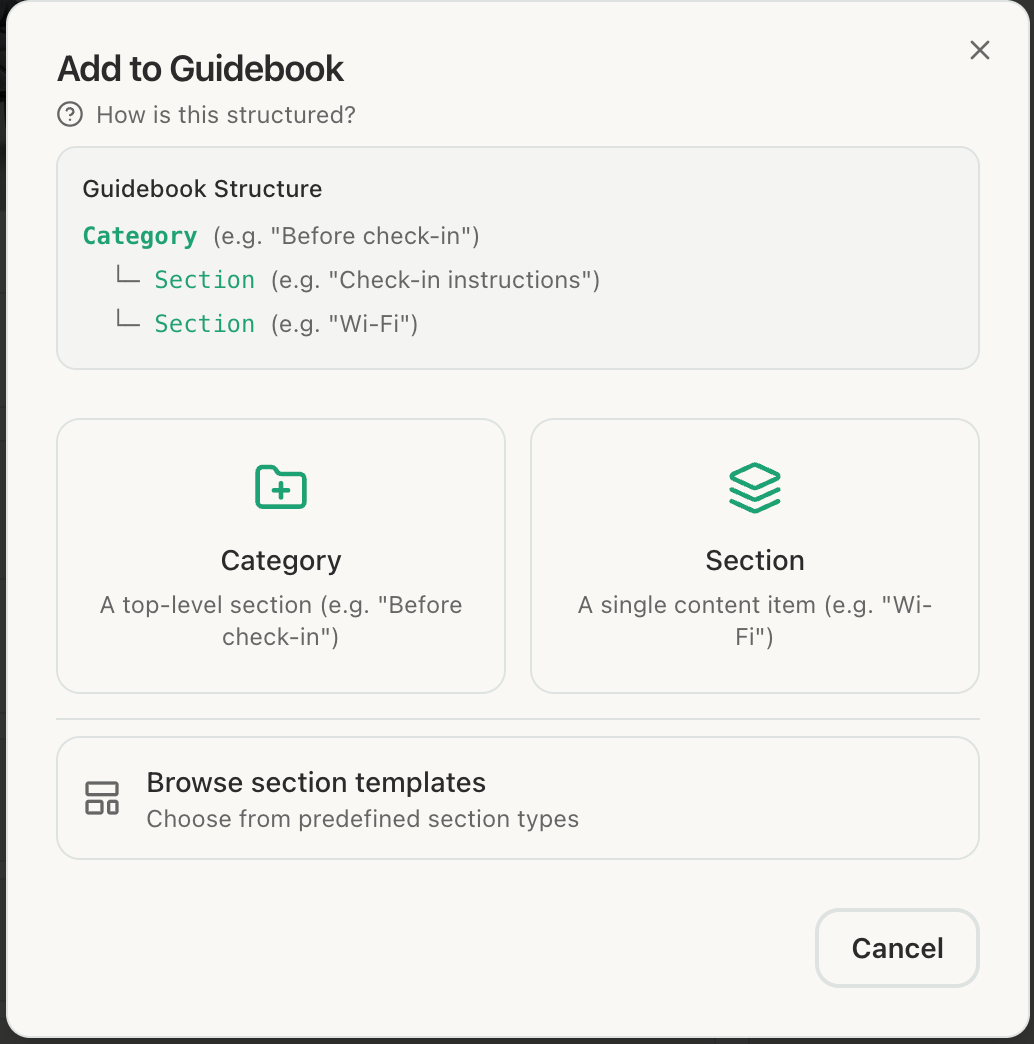
Choose a section type
Click the section type you want to add.
The section appears in your portal
The new section is added at the bottom of the section list and selected in the editor. Start filling in the content right away.
For a great guest experience, start with: Welcome, Getting to the address, Getting the keys, WiFi, Check-in, House Rules, and Check-out. These cover 90% of what guests need to know.
Section limits
There's no limit to the number of sections you can add to a portal (within your plan). You can also add multiple Sections to cover any topic not covered by the built-in types.