
What are placeholders?
Placeholders are special tags you insert into your message template. When you copy a template for a specific property, Guesti automatically fills in the values from your property data, guidebook settings, and host profile — no manual typing needed.
Placeholders use double curly braces, like {{property_name}}.
Available placeholders
Property details
These are resolved from the property you select when copying the template.
| Placeholder | What it inserts |
|---|---|
{{property_name}} |
Your property's name |
{{property_address}} |
Property street address |
{{property_city}} |
Property city |
{{guidebook_link}} |
Direct link to the property's published guidebook |
{{wifi_name}} |
Wi-Fi network name (from guidebook settings) |
{{wifi_password}} |
Wi-Fi password (from guidebook settings) |
Host info
These are pulled from your host profile and are the same across all properties.
| Placeholder | What it inserts |
|---|---|
{{host_name}} |
Your full name (from profile settings) |
{{host_email}} |
Your email address |
{{host_phone}} |
Your phone number |
If a value hasn't been set — for example, no Wi-Fi configured in your guidebook settings — that placeholder is replaced with an empty string. Make sure your property and profile details are filled in to get the best results.
Adding placeholders to a template
Type the placeholder exactly as shown in the tables above inside your message. You can also click the placeholder chips in the template editor to insert them at the cursor. For example:
You'll find everything you need in your digital guidebook: {{guidebook_link}}
Wi-Fi network: {{wifi_name}}
Password: {{wifi_password}}
The property is located at {{property_address}}, {{property_city}}.
Any questions? Reach me at {{host_email}} or {{host_phone}}.
— {{host_name}}
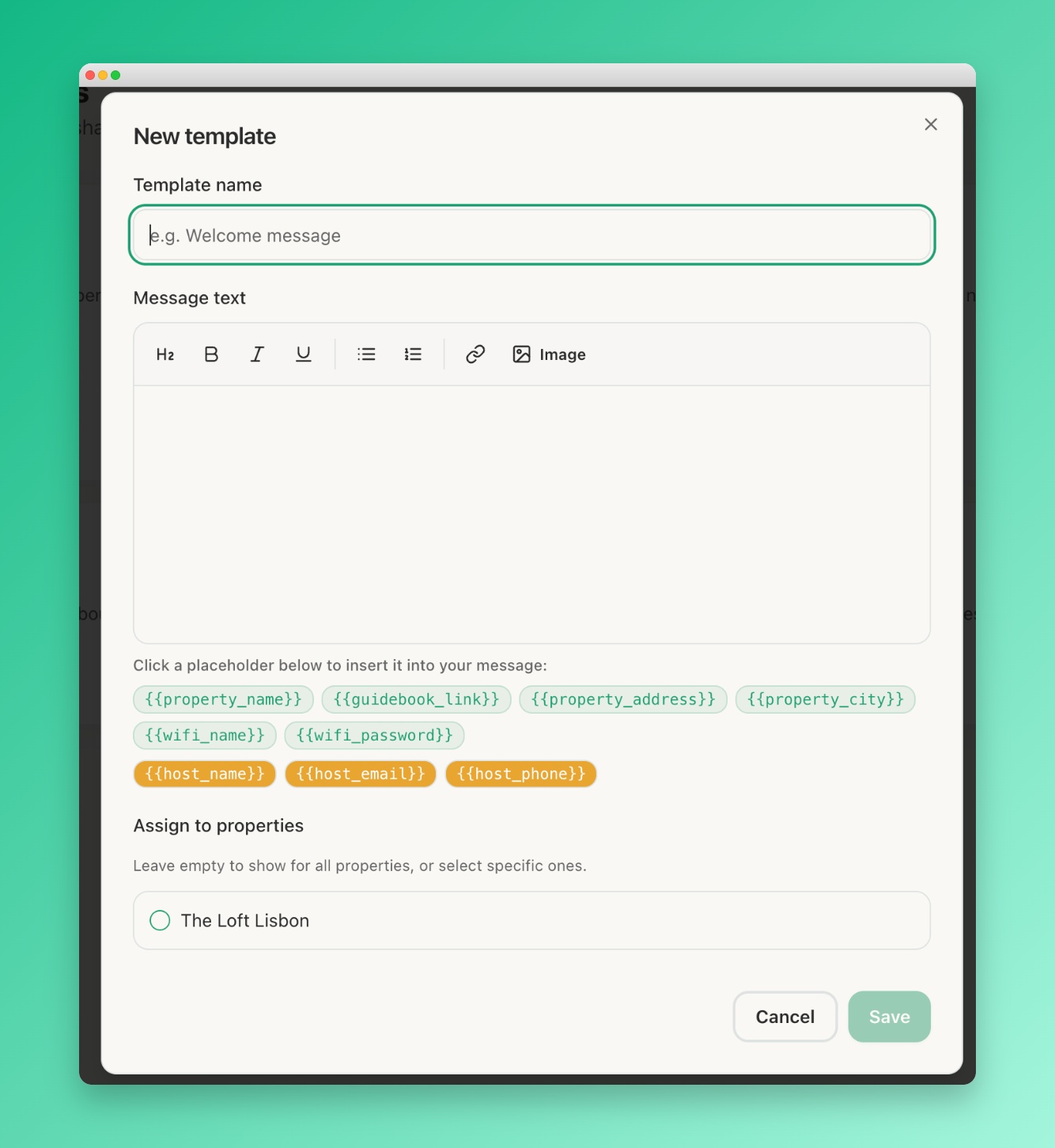 Screenshot: Template with placeholders
A template editor showing a message with several highlighted
placeholder tags in teal colour, and clickable placeholder chips below the text area
Screenshot: Template with placeholders
A template editor showing a message with several highlighted
placeholder tags in teal colour, and clickable placeholder chips below the text area
When you copy a template
When you click Copy on a template from a property's share dialog, Guesti automatically resolves all placeholders using that property's data — guidebook link, Wi-Fi credentials, address, and your host profile — and copies the fully filled-in message to your clipboard. Paste it directly into Airbnb, WhatsApp, or any messaging app.
Always copy templates from the property's share dialog — that's where Guesti knows which property to pull data from. Copying directly from the Templates page will leave placeholders unreplaced.