
Background options
Guesti offers two types of portal background customisation:
- Colour backgrounds — choose from a curated palette of warm, neutral, and accent colours.
- Custom image backgrounds — upload a photo of your property or the local area.
Changing the background
1
Go to Properties → Edit → to open the Portal Builder
Once in the Portal Builder, scroll down to the background settings, and you'll see the options for customising your background.
2
Select "Background"
The background panel shows colour swatches and the option to use a custom color.
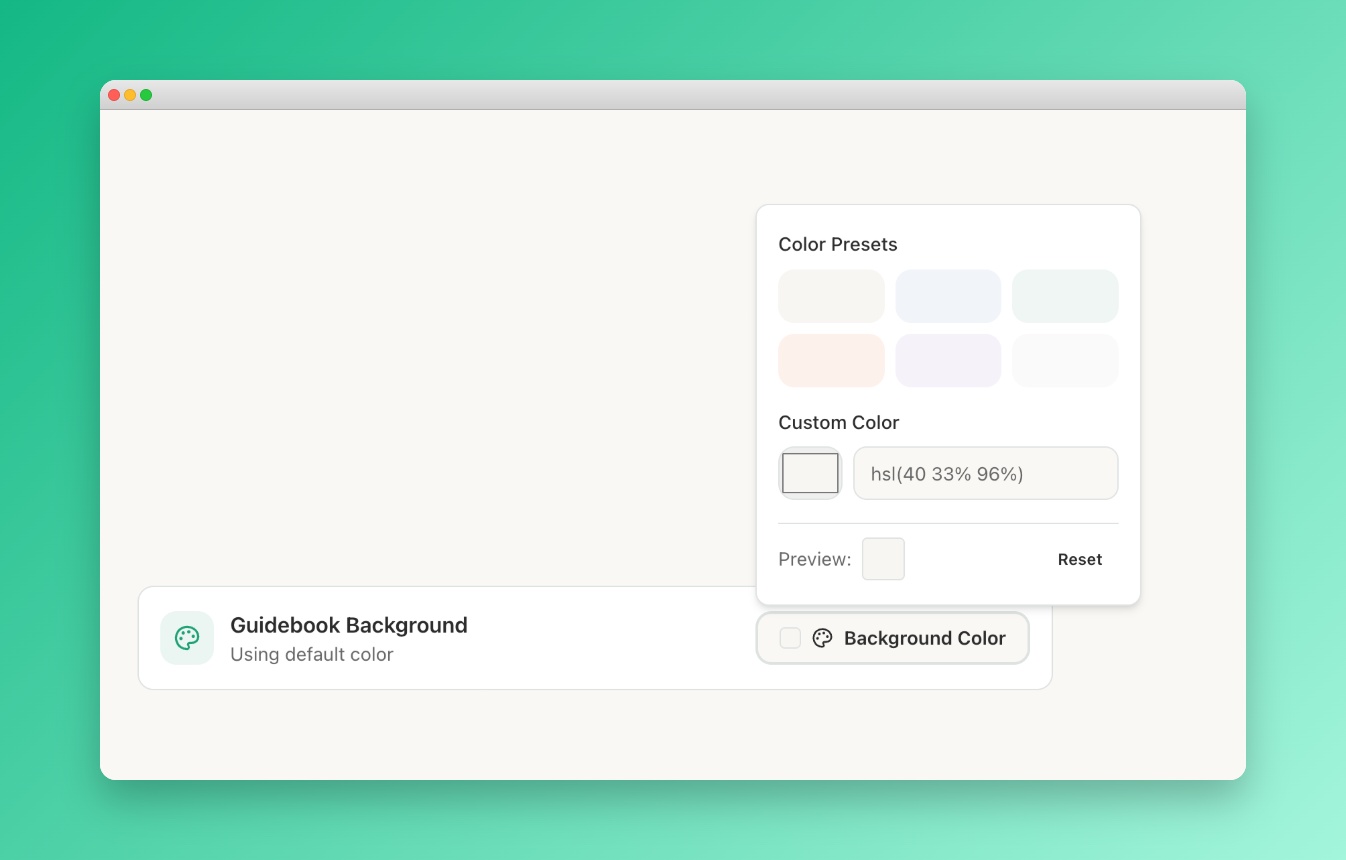 Screenshot: Background settings panel
The portal settings background tab showing the colour swatches and custom color option.
Screenshot: Background settings panel
The portal settings background tab showing the colour swatches and custom color option.
3
Choose a colour
Click a swatch to apply instantly from the available colours or select a custom colour from the colour picker.
4
Preview and publish
The live preview updates immediately. When you're happy with the look, click Save.
Image tips
Use a high-quality, well-lit photo of your property exterior or a beautiful local landmark. Avoid images with lots of text or busy patterns — the portal content overlays it. A subtle, slightly blurred image works best.